

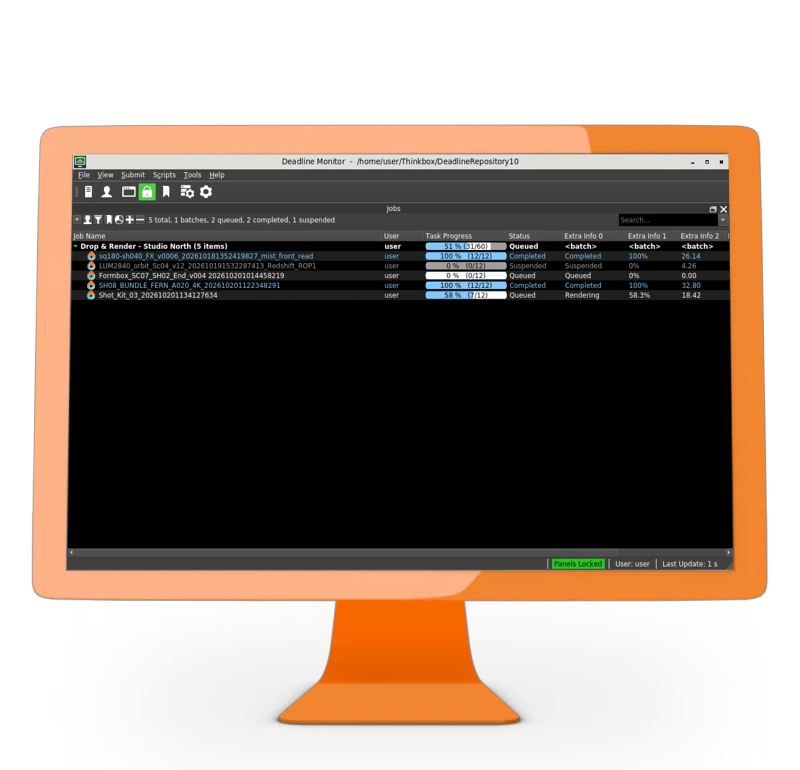
Built for your Deadline workflow
When the client adds a sequence, send the heavy shots to the cloud and keep your own machines on dailies and look development. Producers and artists keep watching Monitor, with costs in plain sight and controls to retry one slice instead of the whole job.
Farm progress in Monitor
See farm state, frame progress and credits alongside your jobs. Link refreshes the information every 30 seconds while you are signed in.
Manage your renders
Suspend, resume, cancel or re-render a job through the Drop & Render menus. Your changes are sent to the farm, without leaving Monitor.
Details for every slice
Check each slice's frames, state, render time, node and credits. Select individual slices to retry only the part of a job you need.
Your local workflow, rendering on our farm
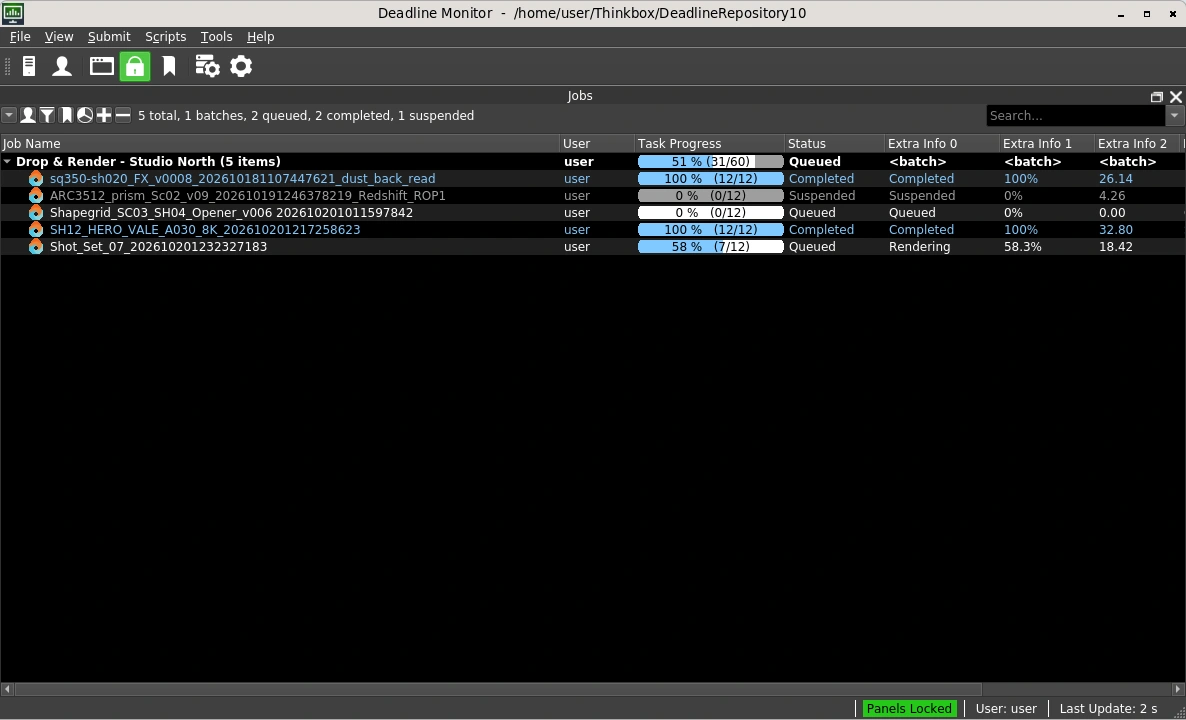
Keep working in Deadline while Drop & Render handles the render. Imported jobs are mirrors of farm jobs, so they do not use your local workers. The custom task fields show the state, frames, time and credits for each slice.
| Where | What it shows |
|---|---|
| Job: Extra Info 0 | Farm state |
| Job: Extra Info 1 | Frame progress |
| Job: Extra Info 2 | Credits used |
| Job: Extra Info 3 | Last refresh |
| Job: Extra Info 4 | Result of the last action |
| Job: Extra Info 5 | Priority tier |
| Tasks | One task per farm slice with State, Frames, Node, Time, Credits and Slice |
Open Scripts > Drop & Render whenever you want to refresh the overview, and use the Drop & Render job and task menus to manage your farm renders. You’ll receive finished frames in your chosen output folder, just as you would when submitting without Deadline.
Set up in five steps
Connect Link to your Deadline repository, then submit a short render to check that your farm jobs appear in Monitor.
-
1
1. Create your free account
Register for Drop & Render. You get €25 in render credits to test with.
-
2
2. Install Drop & Render Link
Download Link from Start rendering and sign in. Link also installs the plugins for your 3D applications.
-
3
3. Check the Deadline side
Use a Deadline 10 client connected to a Direct repository. Run Monitor and Link as the same user, with permission to install repository scripts and update Monitor menus.
-
4
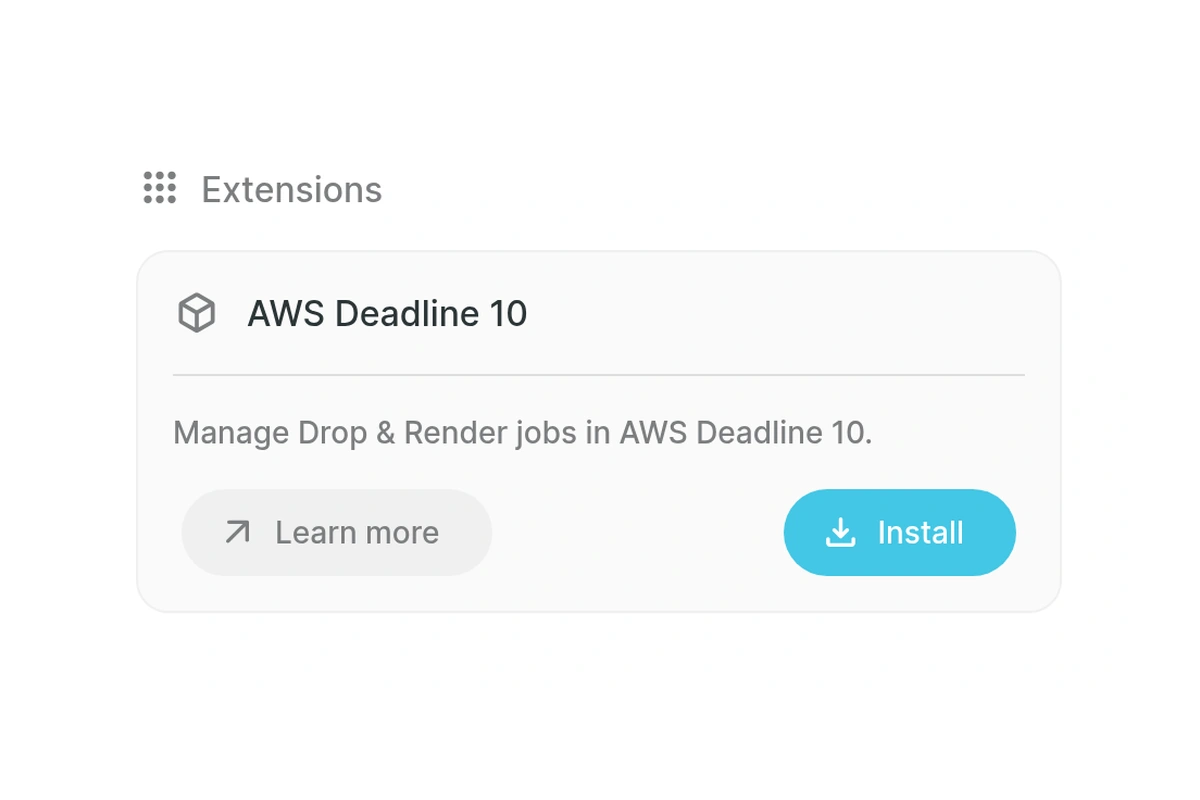
4. Install Deadline from Extensions
Open Extensions in your dashboard. Link finds your repository, installs its scripts and adds the Drop & Render menu. No terminal commands or environment changes needed.
-
5
5. Open Monitor and submit a test
Go to Scripts > Drop & Render. Restart Monitor once if the menu does not appear yet. Submit a short test range through a Drop & Render plugin or the render farm API and watch it arrive.
Good to know
- Deadline 10 with a Direct repository only. Remote Connection Server connections and AWS Deadline Cloud are not supported.
- Use the Drop & Render menus for farm jobs. Native Deadline controls do not control farm jobs, and deleting a job locally does not cancel its render.
- Read progress from the Drop & Render fields. Deadline's own progress and timing columns can differ from the farm's.
- Open the website dashboard to change priority, organize jobs into folders, add comments or manage downloads.
- Use one workstation per account and repository. Other repository users can see imported job data, including jobs from a previous account if you switch accounts.
- Farm jobs never render on your local workers. Leave the reserved dar-do-not-render worker allowlist unchanged.
Go further with the API
The Deadline integration is built on the same dar commands that every Drop & Render customer gets with Link. Read farm data in your own scripts: build a studio dashboard, post a message when a shot is delivered or submit a full batch overnight.
Render farm API
Submit, monitor and control Blender, Cinema 4D and Houdini renders from your own scripts and tools.
Flamenco 3
Send Blender jobs to the cloud with the Drop & Render job type. Frames come back to your output folder.
No extra cost for the extension
Jobs you follow in Deadline use normal Drop & Render render credits and priority tiers. The Deadline extension itself has no extra cost. Start with a short test range to check output and cost for your scene.
Related FAQs
Have questions about using Deadline with Drop & Render? Find answers about setup, job controls and supported connections here.
Does Drop & Render work with Deadline?
keyboard_arrow_downDoes Drop & Render support AWS Deadline Cloud?
keyboard_arrow_downHow do I submit a job that shows up in Deadline?
keyboard_arrow_downHow do I install the Deadline integration?
keyboard_arrow_downHow much does it cost?
keyboard_arrow_downCan I submit native Deadline jobs to Drop & Render?
keyboard_arrow_downDo the normal Deadline controls work with farm jobs?
keyboard_arrow_downWhere do I change priority and manage downloads?
keyboard_arrow_downCan my whole studio use the integration?
keyboard_arrow_downWhat happens if I uninstall the extension?
keyboard_arrow_down

Supported software
Pipeline
Company details
Confirm