
Quick Answer
- Yes, you can submit your first Cinema 4D render job today, even if you've never used a render farm before.
- You need your Cinema 4D project, a render farm account (free to create), and about 5 minutes of setup.
- Your rendered frames land directly in the same folder you normally render to locally; no remapping and no path changes needed.
- Most farms start processing within minutes. Depending on scene complexity, your first frames can be ready in under an hour.
The Short Answer First
If you've landed on this page wondering whether cloud rendering is something you can actually start today, the answer is yes. You don't need a server, an IT department, or any technical background. A render farm is essentially a large pool of high-end machines that render your project in parallel, finishing in hours what might take your local workstation days.
The part that surprises most first-timers is how little changes in their workflow. On a well-built farm, you are still working inside Cinema 4D. You open your scene, open the plugin under Extensions, and submit. There's no exporting, no zipping files, no uploading to a web portal. The farm takes your project exactly as it is on your machine and handles everything from there.
This guide walks through the full process so you know exactly what to expect.
What Does a Render Farm Actually Do?
When you render locally, Cinema 4D processes one frame at a time using your machine's CPU or GPU. A render farm takes your project and distributes it across tens or even hundreds of machines simultaneously. Frame 1 goes to machine A, frame 2 to machine B, and so on, all running at the same time.
The result is that a 500-frame animation that would take 50 hours on your local machine might complete in 2-3 hours on the farm.
A good render farm should feel like pressing Render in Cinema 4D, except the frames come back much, much faster. If it feels more complicated than that, you are using the wrong farm.
This is exactly the philosophy behind how Drop & Render is built. The plugin sits inside Cinema 4D under Extensions, submission is one click, and your output lands on your hard drive exactly where it would if you had rendered locally. The goal is that using a render farm feels no different from rendering on your own machine, just faster.
Before You Submit: A Quick Checklist
Most first-timer problems come down to one of three things: a project that isn't saved, an output path that's missing, or a texture that got left behind. Running through this list takes two minutes and saves a lot of headaches.
- Your project is saved. Unsaved changes won't go with your upload. Save your
.c4dfile first. - An output path is set in Render Settings. It doesn't need to point anywhere specific, just make sure it's configured. Drop & Render redirects this automatically so your frames land in the right place on your local drive.
- Textures and assets are reachable. This matters a lot on most farms, but less so on Drop & Render. The plugin automatically detects and collects all your textures, HDRIs, caches, and linked files before upload. You don't need to run File > Save Project with Assets manually first. That said, if your textures are scattered across multiple drives or old network paths that are no longer connected, it's worth consolidating them first regardless of which farm you use.
Tip: Do a short test render locally before submitting. If the first 5 frames look correct on your machine, they'll look correct on the farm too.
From Your Machine to Finished Frames
Here's what the full process looks like on Drop & Render. The first time takes about 10 minutes end to end. Every render after that is faster because your assets are already synced.
Step 1: Create an account (~2 minutes)
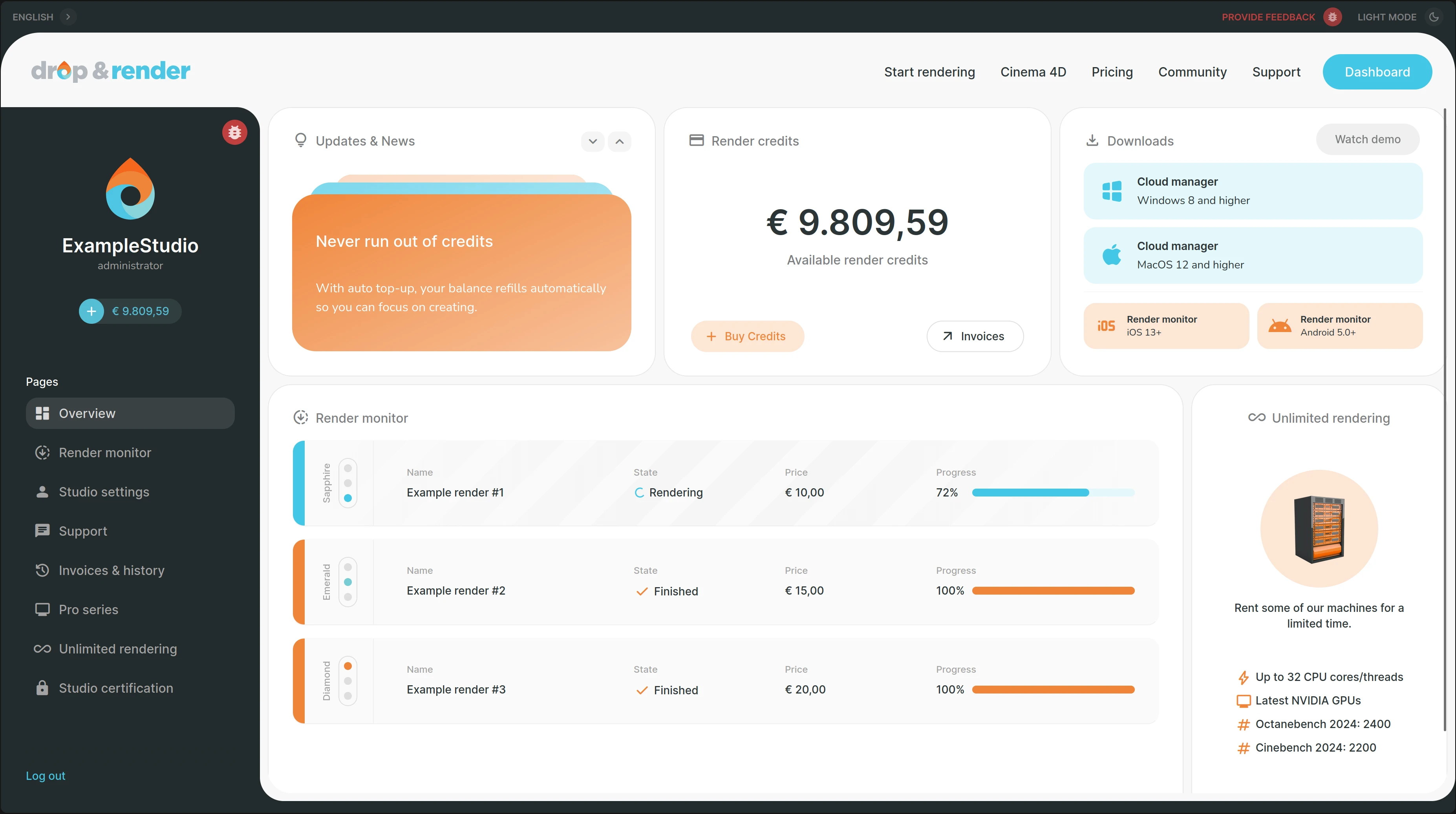
Sign up at dropandrender.com/register. Free trial credits are included, so your first render costs nothing. No card required.
Step 2: Install the plugin (~3-5 minutes, first time only)
Download the Drop & Render Cloud Manager desktop application and follow the prompts. It installs the Cinema 4D plugin directly into your plugins folder with no manual configuration. You won't need to do this again.
Step 3: Open your project in Cinema 4D
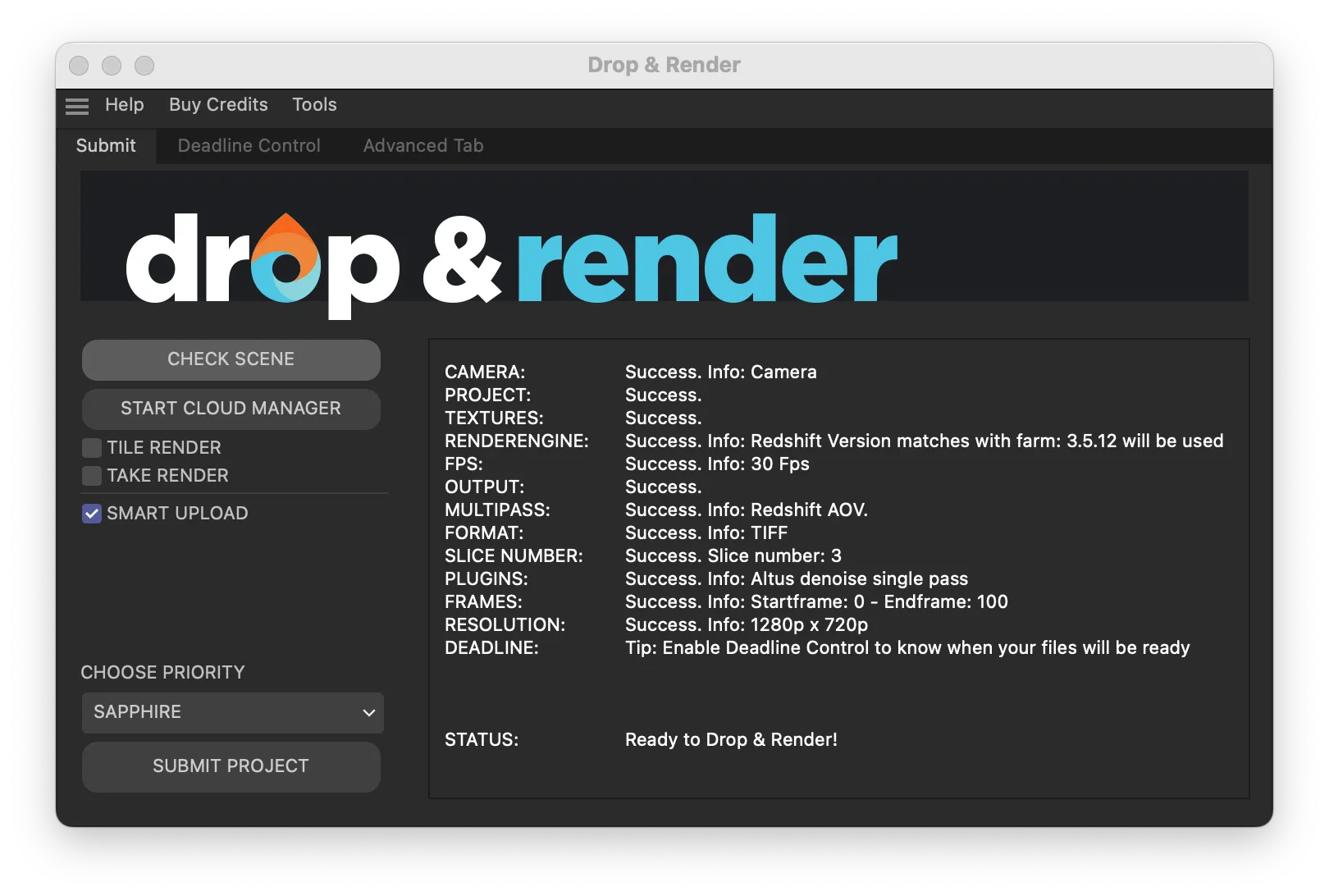
Open the scene you want to render as normal. Go to Extensions > Drop & Render to open the submission panel. It sits inside Cinema 4D like any other plugin.
Step 4: The scene check runs automatically
Before anything leaves your machine, Drop & Render runs over 300 individual checks on your project. It looks at your textures, output paths, render settings, plugin compatibility, and more. If there's a problem, you get a clear message explaining exactly what needs fixing and how to fix it. This happens on your own machine, not after your job has already started on the farm.
This is one of the most important differences between farms. On a basic farm, you find out something is wrong when the job fails halfway through and you've already spent credits. On Drop & Render, you find out before you submit anything.
Step 5: Configure your job settings
Set your frame range, priority level, and slice size. Drop & Render picks sensible defaults so most users don't need to change anything for a first render. If you want to fine-tune how frames are distributed across machines, the options are there.
Step 6: Submit, then close Cinema 4D if you like
Click Submit. Drop & Render uses a smart sync system that only uploads files that have changed since your last render. If you've already rendered a version of this scene, only the updated parts get sent. Once the upload is done, your machine is completely free. You can close Cinema 4D, work on something else, or shut your computer down entirely. The farm keeps going without you.
Step 7: Frames arrive on your hard drive
As each batch of frames finishes, Drop & Render downloads them automatically to the exact same output folder you have set in your Render Settings. No extra steps, no logging into a download portal. They just appear, as if your own machine had rendered them.
Will My Plugins Work? What About My Render Engine?
This is the question that worries most first-timers, and understandably so. You've built your scene using X-Particles, Redshift, and a specific version of TurbulenceFD. Will the farm have all of that?
It depends on the farm. Budget farms often run a fixed software stack. If your plugin version doesn't match theirs, your render will either fail silently or produce different results. This is one of the most common sources of frustration for newcomers.
Drop & Render takes a different approach. When you submit a job, the plugin scans your Cinema 4D installation and records exactly what you have installed: every plugin, every render engine, and every version number. The farm then recreates that exact environment on the render nodes before your job starts. If you're running Redshift 2025.3.1, X-Particles 4.1, and a version of TurbulenceFD from three years ago, the farm runs those exact versions. Not the latest. Yours.
This also means it doesn't matter which version of Cinema 4D you're on. Drop & Render supports every build from R17 through Cinema 4D 2026. If you're on an older version because a client requires it, or because a specific plugin doesn't support the latest build yet, that's fine. It works the same way.
In practice this means you never have to worry about compatibility before submitting. If it works on your machine, it works on the farm.
Supported Render Engines
Drop & Render supports all major Cinema 4D render engines:
| Render Engine | Notes |
|---|---|
| Redshift | GPU-accelerated. RTX 4090 nodes available. |
| Octane | License included; no need to provide your own. |
| Arnold | CPU and GPU variants both supported. |
| V-Ray | Supported across multiple build versions. |
| Corona | CPU renderer, broadly compatible. |
| Cycles 4D | Fully supported. |
| Physical / Standard | Built-in renderers, supported everywhere. |
Where Do My Rendered Files Go?
This trips up almost every first-time user. On traditional farms, you remap your output paths to a network location, the renders go there, and then you download them separately afterward. It's an extra workflow step that doesn't exist when you render locally, and it's easy to get wrong.
Drop & Render works differently. Your output path stays exactly as it is in your Render Settings. The farm renders to that path in its virtual environment, and then delivers the resulting files to that exact location on your actual local drive. No remapping, no downloading from a portal, no renaming folders.
If you normally render to C:\Projects\MyScene\output\, that's where your frames appear; exactly as if your own machine had done the work.
This matters more than it might seem. It means Drop & Render fits into your existing pipeline without changing anything. Your compositing software, your file naming conventions, your folder structure; all of it stays the same. You just get frames faster.
How Long Will It Actually Take?
There's no single answer because it depends on scene complexity and farm load. Here's a realistic breakdown for a typical first-time job on Drop & Render:
| Step | Typical Time |
|---|---|
| Account creation | 2-3 minutes |
| Plugin installation (first time only) | 3-5 minutes |
| Scene check | 30-60 seconds |
| Upload, small scene (< 500 MB) | 2-10 minutes |
| Upload, large scene (1-5 GB) | 15-45 minutes |
| Queue wait at standard priority | 0-10 minutes |
| 500 frames x 5 min/frame across 50 nodes | ~50-60 minutes |
| Download to local drive | Automatic as frames complete |
From your second render of the same project onward, the upload step shrinks dramatically. Drop & Render uses hash-based file comparison to skip any assets that haven't changed. If you're re-rendering with a small lighting tweak, only the updated files get uploaded. Everything else is already on the farm.
Planning tip: Submit your job before you leave for lunch or at the end of the day. A 500-frame animation submitted at 6pm is often waiting for you complete the next morning.
Monitoring Your Render from Anywhere
Once your job is submitted, you don't need to stay at your workstation. Drop & Render tracks every frame in real time through an online dashboard that works in any browser, including on your phone.
A lot of artists get into the habit of submitting a job before they leave the studio, checking progress on their phone over dinner, and coming back to finished frames. That's the workflow Drop & Render is designed around. You submit, you leave, the frames are there when you get back.
The dashboard shows the status of every individual frame: queued, rendering, completed, or failed. If a frame fails due to a hardware error, it gets automatically re-queued to a different machine. You don't need to do anything.
- Desktop dashboard: view all jobs, frame status, and downloads in real time.
- Mobile browser: check progress from your phone without opening your workstation.
- Email notifications: get alerted when a job completes or needs attention.
- Live cost tracker: see exactly what the current job is costing as it runs.
What to Look For in a Cinema 4D Render Farm
Not all farms are built the same. If you're evaluating options, here's what actually matters for Cinema 4D work:
- A plugin that lives inside Cinema 4D. You should not be zipping files or uploading through a web browser. Submission should happen from within your existing application.
- Upfront scene validation. Problems should be caught on your machine before your job starts, not discovered in a server log after it fails.
- Official Maxon partnership. Maxon maintains a list of certified render farm partners. These have been validated for Cinema 4D compatibility. Drop & Render has been on that list for over a decade.
- Full plugin and version matching. The farm needs to run your exact plugin builds, not just the same plugin names. This is the difference between a render that matches your local output and one that doesn't.
- Output directly to your local drive. No remapping, no portal, no extra steps. Frames should land where you expect them.
- Smart asset sync. Re-rendering a tweaked version of the same project should be fast, not a full re-upload every time.
- Real people in support. Render farms are infrastructure. When something goes wrong at 2am before a deadline, you want to reach someone who knows Cinema 4D, not a chatbot.
Frequently Asked Questions
Do I need to restructure my project before submitting? Not on Drop & Render. The plugin collects your assets automatically as part of the submission process. You don't need to run Save Project with Assets or change your folder structure. Open your scene, open the plugin, submit.
What if a plugin I use isn't on the supported list? Drop & Render supports a wide range of plugins including X-Particles, TurbulenceFD, Forester, RealFlow, FumeFX, Krakatoa, and many more. If a plugin you need isn't listed, contact the support team. They actively add plugins on request and have been doing so for over ten years.
Can I render just a few frames as a test? Yes, and it's a good idea. Set a custom frame range and submit frames 1, 50, and 100 first. This costs a fraction of the full job and confirms the output looks right before you commit the whole sequence.
My scene uses GPU rendering. Will the farm use GPUs? Yes. Drop & Render offers RTX 4090 GPU nodes for Redshift, Octane, Arnold GPU, and other GPU-accelerated renderers. The plugin detects which renderer you're using and allocates the right node type automatically.
How long are my files kept after the render? Drop & Render stores uploaded assets for 7 days after last use, and keeps completed renders available for download for 7 days after completion. You can also download from anywhere using the web dashboard during that window; not just from the machine that submitted the job.
Do I need to keep my computer on while it renders? No. Once the upload is done, shut it down if you want. Drop & Render's Cloud Manager resumes downloads automatically the next time you open it. Your frames will be waiting.
You Can Start Today
The version of cloud rendering that required technical setup and server configuration is gone. On a well-built farm, the workflow is: open your project, open the plugin, submit, done.
Drop & Render has been running Cinema 4D projects for over ten years as an official Maxon Render Farm Partner. The upfront scene validation, automatic asset collection, workstation recreation, and direct-to-disk output are all there specifically so that your first render works without needing support.
- Open your project in Cinema 4D.
- Install the Drop & Render plugin (5 minutes, once).
- Let the scene check run. Fix anything flagged.
- Submit.
- Go do something else. Your frames are being rendered.
Drop & Render is an official Maxon Render Farm Partner with over a decade of experience. Supported Cinema 4D versions: R17 through 2026. All major render engines and plugins supported.